PlayStudio UI
The studio where SharePlay creators run their channel.
00 — Overview
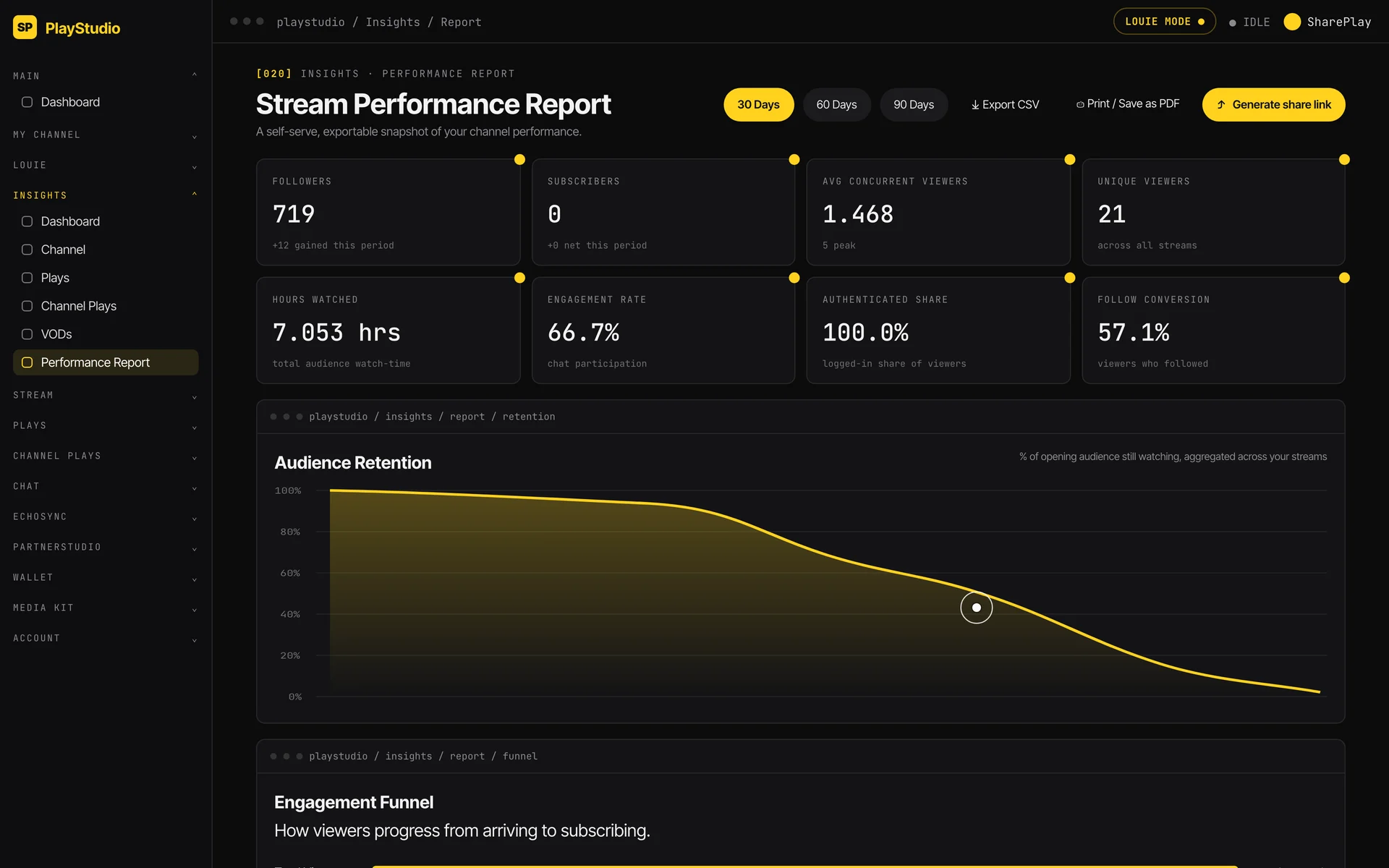
PlayStudio is the creator console for SharePlay: one place for creators to run their channel, understand their audience, and see what their streams earn.
It brings stream performance, audience engagement, earnings, PlayCoins, followers, clips, partnerships and an AI assistant into a single dashboard, so creators spend less time jumping between tools and more time streaming.
- Role
- Product Design · Data Visualization · Interaction Design
- Platform
- Web application
- Part of
- SharePlay
01 — The problem
Creators had the data, but not the picture.
Streamers juggle a lot: going live, reading the room, growing followers, and making the numbers work. The information they need is usually spread across tools: analytics in one place, earnings in another, clips and partnerships somewhere else.
Raw numbers also don't answer the questions creators actually ask: Did people stay? Where did they drop off? Which streams are growing my channel? What's working and what isn't?
PlayStudio needed to turn channel data into clear answers, quickly enough to act on between streams.
02 — Research & discovery
1. Learning from creator tools
I looked at the dashboards creators already use, such as Twitch's Creator Dashboard and YouTube Studio, to see what they get right and where they fall short. They're comprehensive, but often dense: plenty of charts, but not much guidance on what matters most or what to do next.
2. Designing around creator questions
I organised the console around the questions a creator asks after a stream:
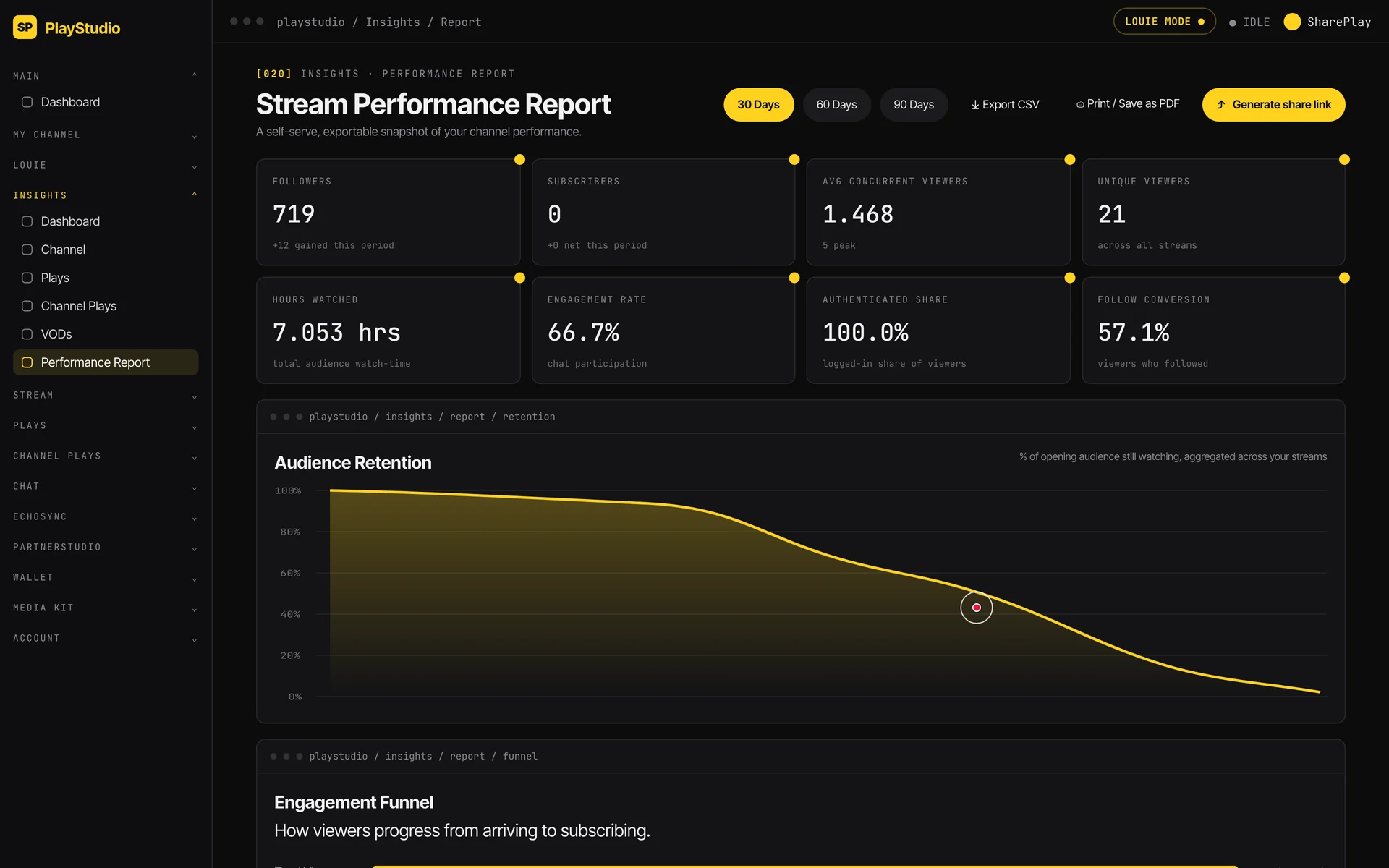
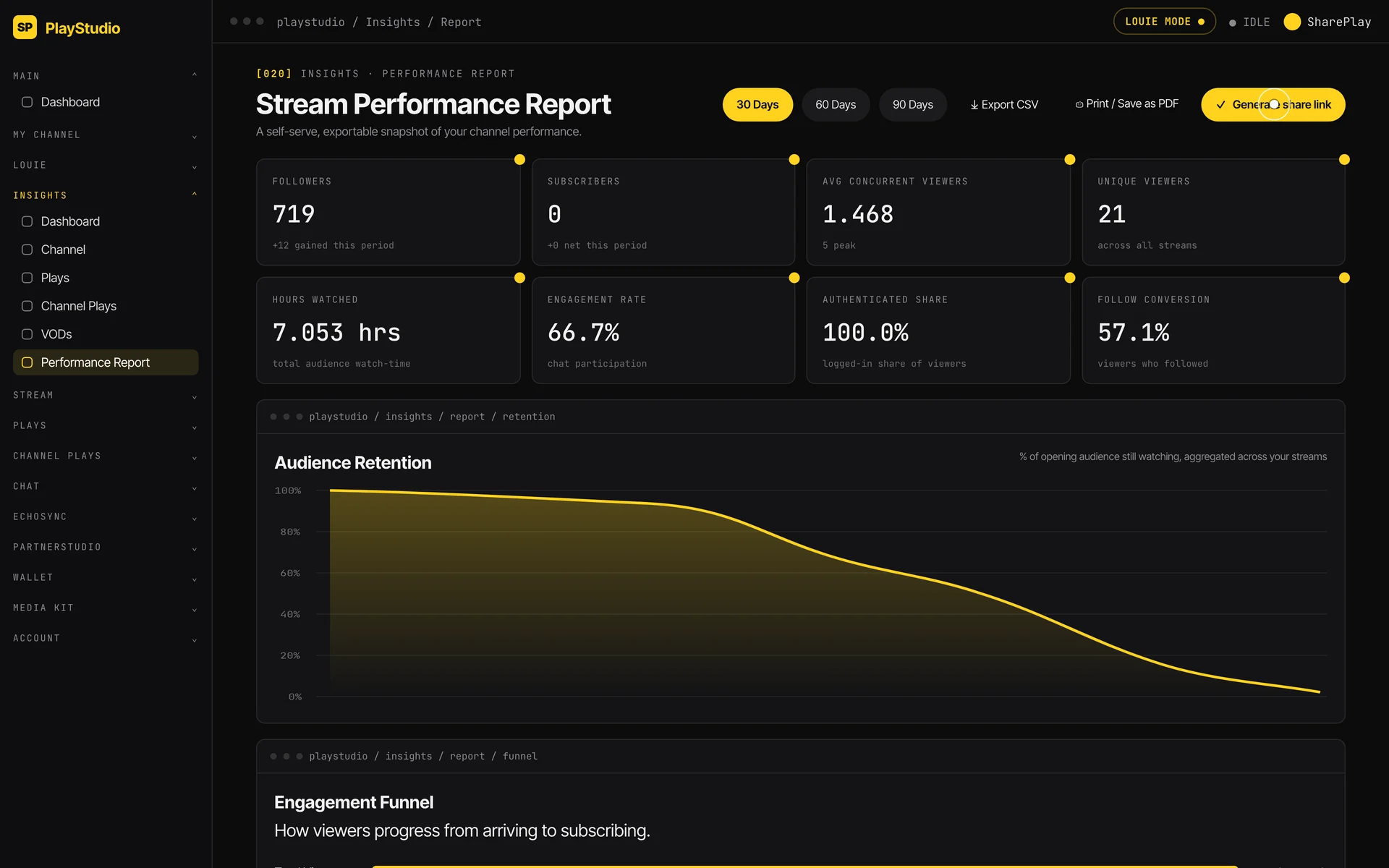
- How did it go? Headline KPIs for the period: followers, subscriptions, average viewers, stream hours, engagement rate and more.
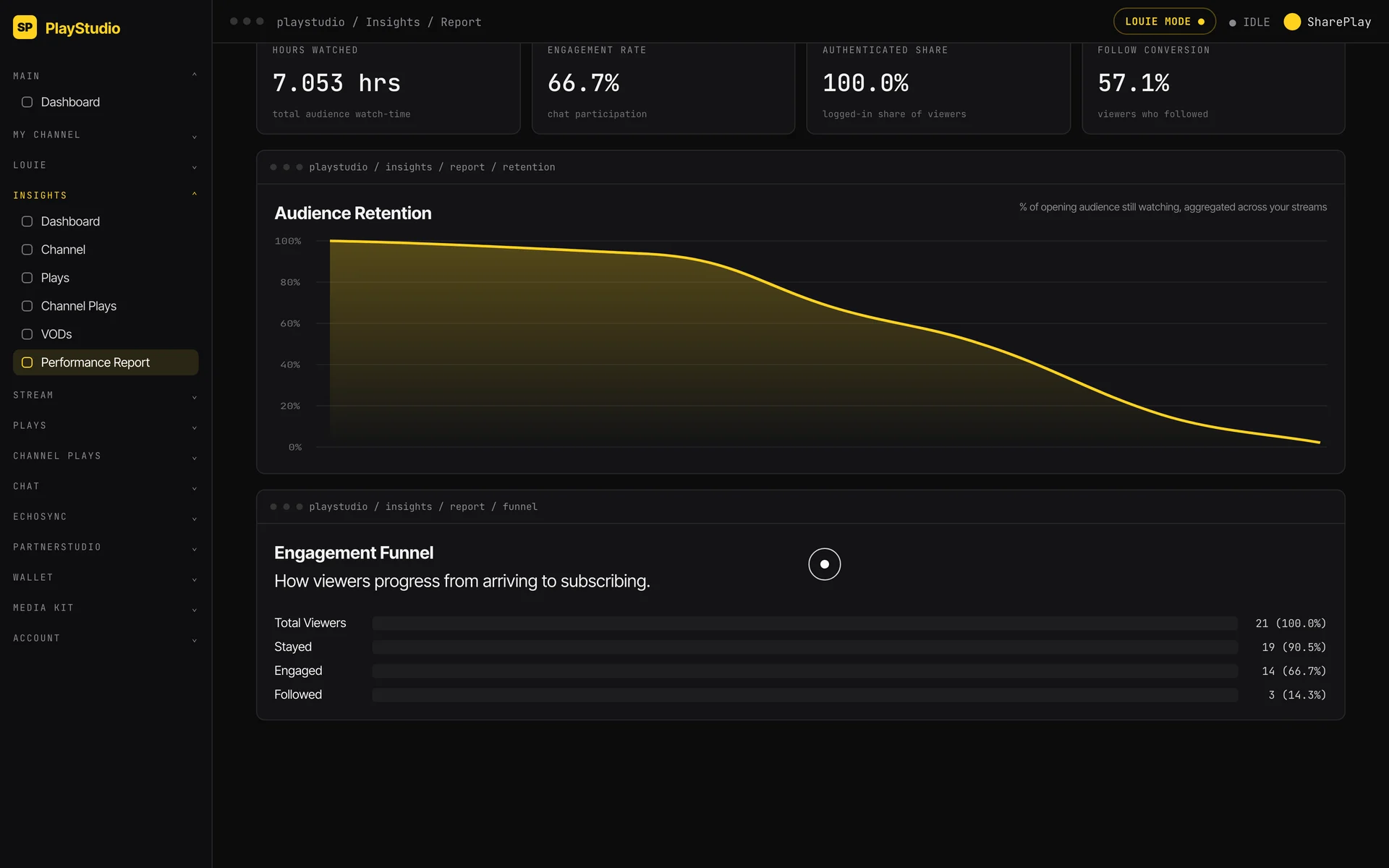
- Did people stay? An audience-retention curve showing how many viewers were still watching through the stream.
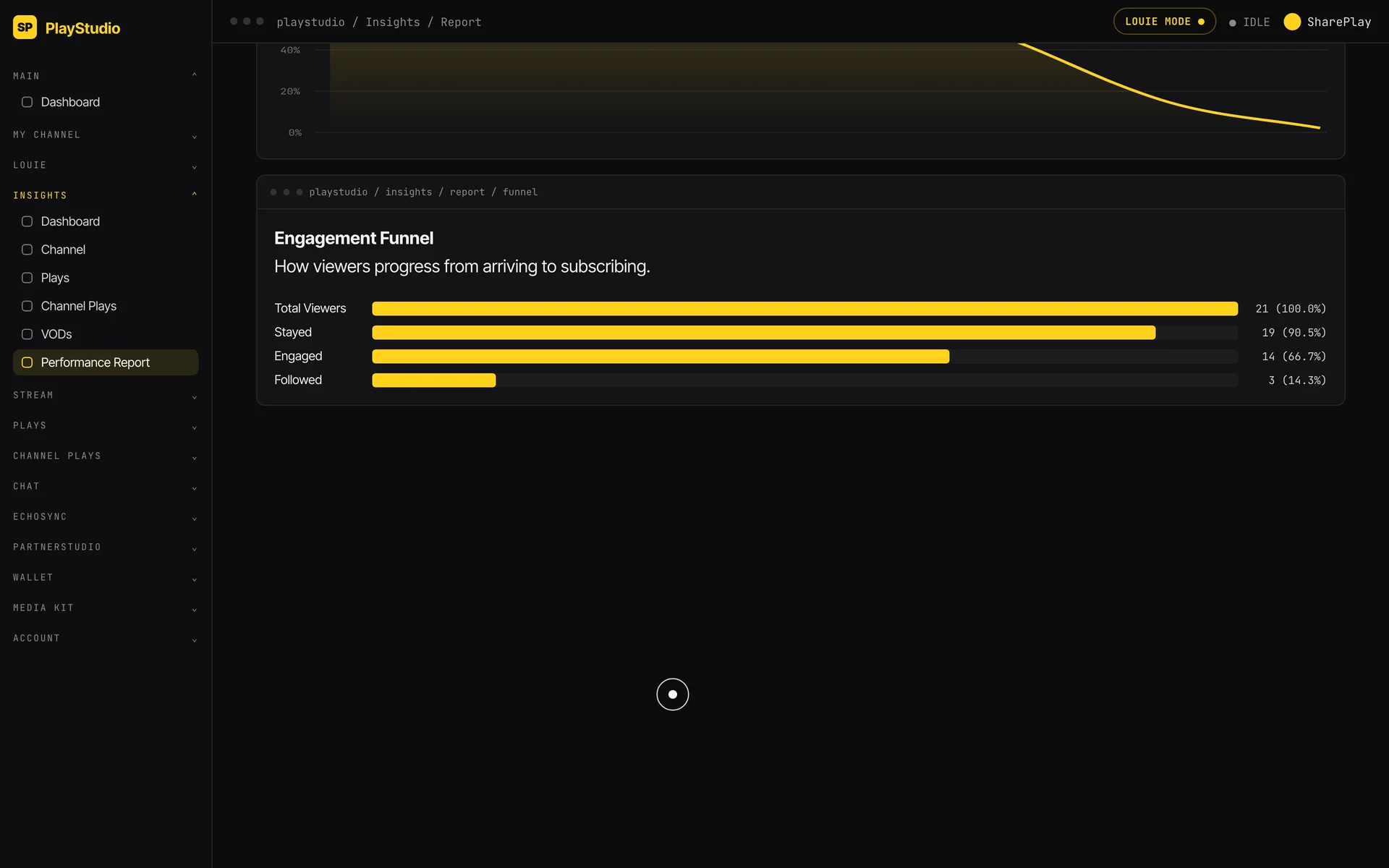
- Where did they drop off? An engagement funnel from total viewers, to those who stayed, to those who engaged, to those who followed.
- What do I do next? An AI assistant (Louie) that helps creators interpret their numbers.
3. Shareable, not just viewable
Creators often need to show their numbers to sponsors and partners, so performance reports can be exported or turned into a share link. The dashboard doubles as a media kit.
03 — Design decisions
- Period controls first. 30, 60 and 90-day switches sit at the top, so every chart answers "compared to when?".
- One colour for meaning. SharePlay yellow highlights the metric or line that matters, on a dark interface built for long sessions.
- Charts that explain themselves. Every card has a plain-language label and a short description, so a creator never has to guess what a number means.
- Everything in one rail. The full channel (dashboard, channel, plays, VODs, partnerships, wallet, media kit and account) sits in one navigation, so nothing lives in a separate tool.